
Planning and overview
Training calendar
See every scheduled training session and your own events in a month or week view - no copying dates into an external calendar.
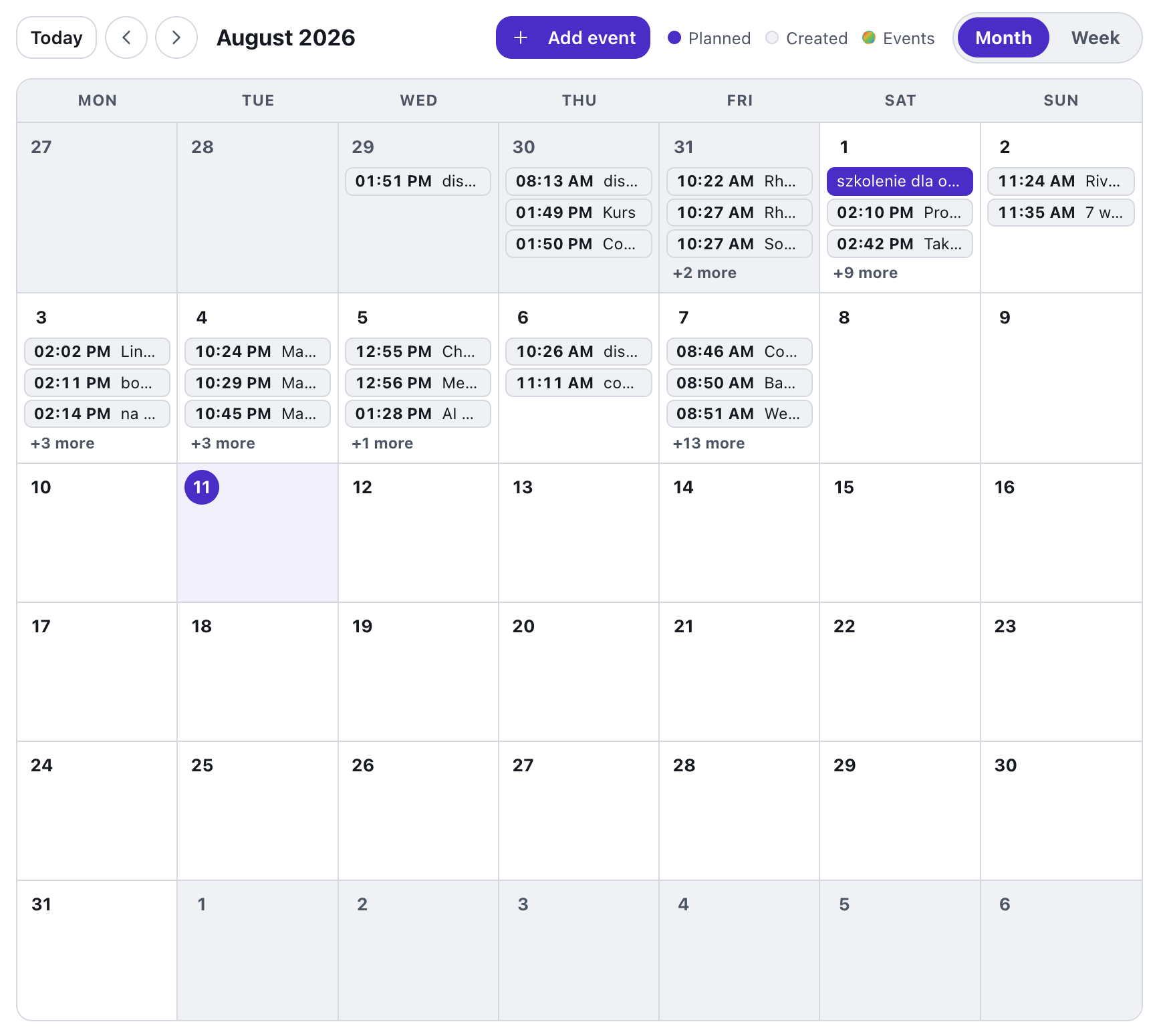
What is Training calendar?
The calendar gathers dates from every tool on the platform in one place: events, courses, quizzes, surveys and any other session with a date set. There is nothing to add by hand - if a session has a date, it simply appears in your organization's calendar.
Next to the sessions you can add your own events: room setup, a trainers' team meeting, a materials deadline. The month view gives an overview of the whole plan, while the week view with an hour axis shows the exact schedule of each day. Clicking an entry opens a preview in a side panel, from which you jump straight to the session in its tool.
See it in action
From the month to the day's plan
Features
Key capabilities
Month and week
Switch with one click between an overview of the whole month and a detailed week plan with an hour axis.
Sessions from every tool
Every session with a date lands in the calendar automatically - events, courses, quizzes, surveys and the rest.
Your own events
Add entries not tied to any tool: preparations, team meetings, internal deadlines.
Side panel instead of navigation
Click an entry to see its details in a side panel and jump straight to the session in its tool.
Today always visible
The current day is highlighted in both views, so you always know where you are in the plan.
Part of the content table
The calendar works next to the all-content table with filters and CSV export - two views of the same data.
Step by step
How it works
Open Content
Go to Content in the top menu and switch the view to the calendar.
Schedule sessions
Set session dates in their tools - the calendar collects them by itself.
Add your own events
Write preparations and meetings directly into the calendar.
Work with the plan
Switch between month and week, open entries in the side panel and jump to the tools.
Use cases
What it’s good for
- Plan a month of training and show the team one shared calendar.
- Check before the week starts which sessions you run and at what times.
- Add room setup and sending out materials to the plan before a training.
- Find a free slot for a new session without going through the tools one by one.
- I want to see all scheduled trainings in one calendar
- I need a week plan with the hours of my sessions
- I want to add my own events next to training sessions
White label
Your brand for participants
On the paid plans you can add your company name, logo and colors, and during every session participants will see your brand instead of Verbalu.
Try “Training calendar” in Verbalu
Create a free account and run your first engaging session today. No card, no installation.